JPG (JPEG) Format Guide
JPG — also written as JPEG — is the most widely used image format in the world. Developed by the Joint Photographic Experts Group in 1992, it revolutionized digital photography by making it possible to store high-quality photos in relatively small files. Today, over 73% of all images on the web are served in JPG format.
What Is JPG?
JPG (Joint Photographic Experts Group) is a lossy image compression format designed specifically for photographic and realistic images. The format uses a sophisticated compression algorithm based on the Discrete Cosine Transform (DCT), which analyzes the image in 8x8 pixel blocks and removes visual information that the human eye is least likely to notice.
The key insight behind JPG compression is that human vision is more sensitive to changes in brightness than changes in color. JPG exploits this by storing brightness data (luminance) at full resolution while reducing the detail in color data (chrominance) — a process called chroma subsampling. This alone can reduce file size by 50% with virtually no visible quality loss.
JPG supports up to 16.7 million colors (24-bit color depth) and quality levels from 1 to 100. At quality 85, a typical photograph retains excellent visual quality while achieving 10:1 compression compared to raw data. At quality 60, the file size drops dramatically but compression artifacts — blocking, banding, and mosquito noise — may become visible around sharp edges.
When to Use JPG
- Photographs and realistic images — JPG was designed specifically for continuous-tone imagery like photos, paintings, and real-world scenes.
- Web images — JPG offers the best balance of quality and file size for most website images, ensuring fast page loads.
- Email attachments — JPG files are small enough to send via email and universally viewable across all devices and email clients.
- Social media — Every social platform accepts JPG, and it handles the re-compression that platforms apply better than most formats.
- Archiving large photo collections — When storage space matters, JPG lets you store thousands of photos without filling your drive.
Pros
- Universal compatibility — supported by every browser, operating system, and image viewer
- Excellent compression ratios for photographs — typically 10:1 to 20:1 with good quality
- Adjustable quality slider lets you fine-tune the balance between file size and visual quality
- Supports EXIF metadata for camera settings, GPS coordinates, and timestamps
- Progressive loading — images can render from blurry to sharp as they download
Cons
- Lossy compression — each time you edit and re-save a JPG, quality degrades (generation loss)
- No transparency support — cannot have transparent backgrounds (use PNG or WebP instead)
- Not ideal for text, line art, or graphics with sharp edges — compression creates visible artifacts
- No animation support — cannot contain multiple frames like GIF or animated WebP
- Limited to 8-bit color depth per channel — not suitable for HDR imagery
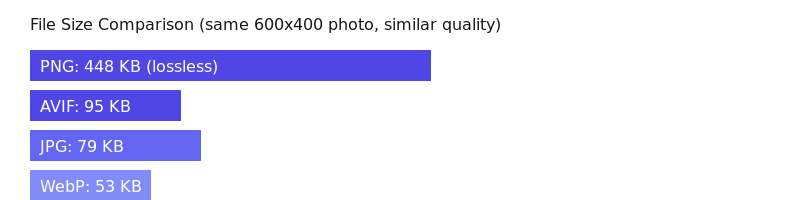
JPG vs Other Formats
JPG vs PNG: JPG produces much smaller files for photographs but cannot handle transparency. PNG is better for graphics, screenshots, and images with text. For a photo, JPG at quality 85 might be 200 KB while the same image as PNG could be 2 MB.
JPG vs WebP: WebP typically achieves 25-35% smaller file sizes than JPG at equivalent visual quality. However, JPG has broader compatibility with older browsers and software. If you need to support legacy systems, JPG is the safer choice.
JPG vs HEIC: HEIC offers roughly 50% better compression than JPG while supporting features like transparency and HDR. However, HEIC is primarily supported on Apple devices. Converting HEIC to JPG is common when sharing photos with non-Apple users.
JPG vs AVIF: AVIF offers significantly better compression than JPG — often 50% smaller files at the same quality — plus HDR and transparency support. AVIF is newer and encoding is slower, but browser support is growing rapidly.
Understanding JPG Quality Settings
JPG quality is specified on a scale from 1 to 100. Quality 100 is not truly lossless — it simply applies the minimum amount of compression. Here is a practical guide to quality settings: 95–100 is near-lossless, suitable for print or archival use; 80–90 is the sweet spot for web images, offering excellent quality with significant compression; 60–75 provides noticeable compression but acceptable for thumbnails and previews; below 50, artifacts become clearly visible and are only suitable when file size is critical.
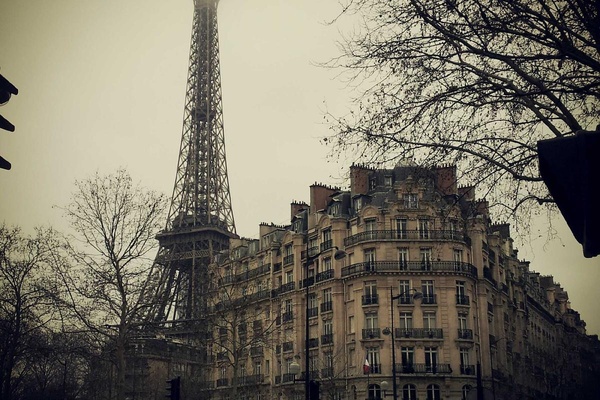
Quality 95 — 125 KB
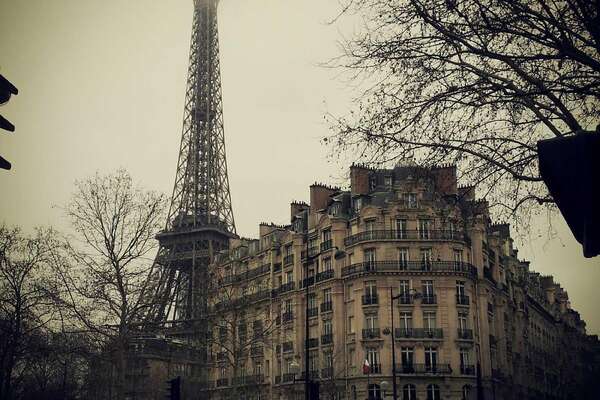
Quality 60 — 47 KB
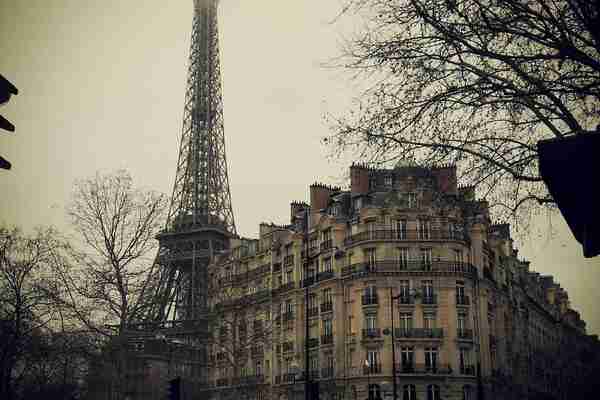
Quality 20 — 22 KB
How to Convert JPG Files
Converting JPG files with ImgForge is simple. Upload your JPG image, choose your desired output format (PNG, WebP, AVIF, or any other supported format), and download the result instantly. Your files are processed securely and deleted immediately after conversion — nothing is stored on our servers.