WebP vs JPG vs PNG: How to Choose the Right Image Format
By ImgForge Team — Published January 28, 2026
Choosing the right image format can be confusing — JPG, PNG, and WebP all have different strengths, and the best choice depends on your specific use case. This guide cuts through the complexity with practical, actionable advice for photographers, web developers, designers, and everyday users.
The Quick Answer
If you just want a simple recommendation: use WebP for web images (photos and graphics), JPG for sharing photos via email or messaging, and PNG only when you need transparency or pixel-perfect lossless quality. For the full picture, read on.
JPG: The Universal Photo Format
JPG has been the default photo format since the early days of digital cameras. Its main strengths are universal compatibility (works everywhere, from 20-year-old email clients to the newest smartphones) and good compression for photographs. JPG uses lossy compression that discards visual information the human eye is least likely to notice, achieving typical compression ratios of 10:1 to 20:1. The downside is that each time you edit and re-save a JPG, quality degrades slightly — a phenomenon called generation loss. JPG also cannot handle transparency.
PNG: Lossless Quality and Transparency
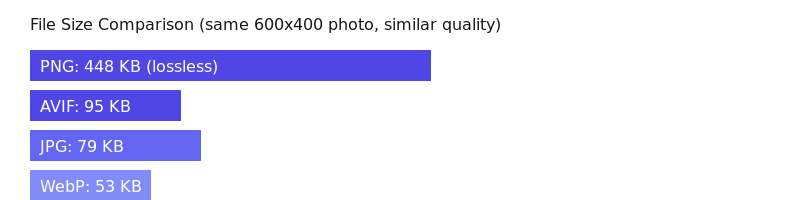
PNG is the format of choice for graphics, screenshots, and any image requiring transparency. Its lossless compression means you can save a PNG file a million times without any quality loss — every pixel remains identical. PNG supports full alpha transparency (256 levels of opacity per pixel), enabling smooth anti-aliased edges against any background. The trade-off is file size: for photographs, PNG files are typically 5-10 times larger than JPG at comparable perceived quality.
WebP: The Best of Both Worlds
WebP, developed by Google, combines the strengths of both JPG and PNG. In lossy mode, WebP produces files 25-35% smaller than JPG at equivalent visual quality. In lossless mode, WebP files are 26% smaller than PNG. WebP also supports transparency (even in lossy mode — a unique feature) and animation. With 97%+ browser support, WebP is now safe to use for virtually all web projects without fallbacks.
Side-by-Side Comparison
| Feature | JPG | PNG | WebP |
|---|---|---|---|
| Compression | Lossy | Lossless | Both |
| Transparency | No | Yes (alpha) | Yes (alpha) |
| Animation | No | No | Yes |
| Photo file size | Small | Very large | Smallest |
| Browser support | 100% | 100% | 97%+ |
| Best for | Photos, sharing | Graphics, screenshots | Web images (all types) |
Practical Recommendations
- Building a website — Use WebP (or AVIF) as your primary format. Serve JPG as a fallback for the rare visitor on an unsupported browser. This strategy can reduce your page weight by 30%+ with zero visual quality loss.
- Sharing photos via email — Use JPG. It is universally supported by every email client and works on every device. Quality 85 offers the best balance of quality and file size.
- Saving a logo or icon — Use SVG if possible (infinitely scalable). If SVG is not an option, use PNG for the transparent version. Never save a logo as JPG — the compression artifacts around sharp edges and text will look terrible.
- Taking a screenshot — Use PNG. It preserves the sharp text and UI elements perfectly. JPG would blur the text and create visible artifacts around edges.
- Posting on social media — Most platforms accept JPG and PNG. Note that platforms re-compress your images anyway, so uploading at maximum quality helps preserve detail through their compression pipeline.