PNG Format Guide
PNG (Portable Network Graphics) is the go-to format for images that demand pixel-perfect quality and transparency. Created in 1996 as a patent-free replacement for GIF, PNG has become the standard for web graphics, screenshots, diagrams, and any image where lossless quality matters.
What Is PNG?
PNG is a lossless raster image format that preserves every pixel of your image exactly as-is. Unlike JPG, which discards visual information to reduce file size, PNG compresses data without any loss — you can save a PNG a thousand times and it will remain identical to the original.
The format uses DEFLATE compression, the same algorithm behind ZIP files. It works by finding and eliminating redundant data patterns. This makes PNG particularly efficient for images with large areas of uniform color — like screenshots, diagrams, and graphic designs — where the algorithm can identify many repeating patterns.
PNG supports multiple color modes: PNG-8 (indexed color, up to 256 colors, similar to GIF), PNG-24 (true color, 16.7 million colors), and PNG-32 (true color plus an 8-bit alpha channel for full transparency). The alpha channel allows each pixel to have its own opacity level, from fully transparent to fully opaque, enabling smooth edges and complex transparency effects that GIF's binary transparency cannot achieve.
When to Use PNG
- Images requiring transparency — PNG's alpha channel supports 256 levels of transparency per pixel, enabling smooth anti-aliased edges against any background.
- Screenshots and UI mockups — PNG preserves the crisp text and sharp edges in user interface elements without compression artifacts.
- Logos, icons, and graphic design — any image with flat colors, text, or sharp lines benefits from PNG's lossless compression.
- Images that will be re-edited — since PNG is lossless, you can open, edit, and re-save without any quality degradation.
- Technical diagrams and charts — PNG preserves fine lines and text legibility that JPG compression would blur.
Pros
- Lossless compression — no quality loss, ever, no matter how many times you save
- Full alpha transparency — 256 levels of opacity per pixel for smooth edges and complex transparency
- Excellent for graphics — crisp text, sharp edges, and flat colors compress very efficiently
- Supports interlacing — images can load progressively, showing a low-resolution preview first
- Universal browser support — works everywhere, from modern browsers to legacy applications
Cons
- Large file sizes for photographs — a photo saved as PNG can be 5-10x larger than the same image as JPG
- No native animation support — use APNG (limited support) or GIF/WebP for animated images
- No EXIF metadata support — camera data from photographs is not preserved in PNG files
- Slower to encode and decode than JPG — the lossless algorithm requires more processing power
- Not ideal for web performance — large PNG files slow down page load times compared to WebP or AVIF
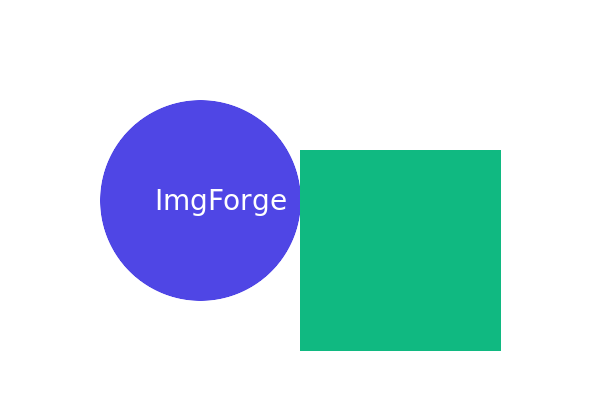
PNG — transparent background
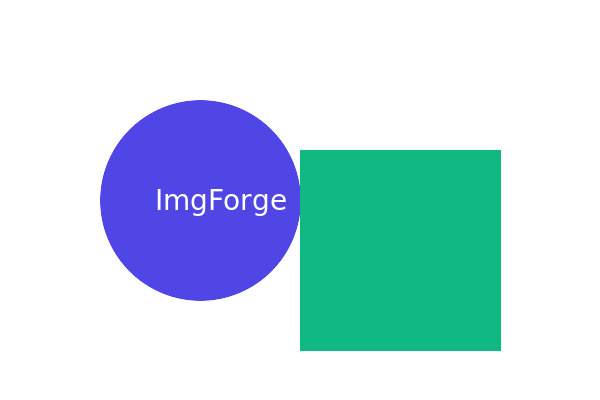
JPG — white background (no transparency)
PNG vs Other Formats
PNG vs JPG: PNG files are significantly larger than JPG for photographs, but PNG is the clear winner for graphics with text, sharp edges, or transparency. Use JPG for photos, PNG for everything else that needs lossless quality.
PNG vs WebP: WebP lossless compression produces files 26% smaller than PNG on average. If browser compatibility is not a concern, WebP is often the better choice for web graphics. However, PNG remains more widely supported in desktop applications and older tools.
PNG vs SVG: PNG is a raster format (made of pixels), while SVG is a vector format (made of mathematical shapes). SVG is better for logos and icons that need to scale to any size. PNG is better for complex images, screenshots, and photographs.
PNG vs GIF: PNG supports more colors (16.7 million vs 256), better transparency (alpha channel vs binary), and better compression. GIF's only advantage is animation support. For static images, PNG is superior in every way.
PNG Optimization Tips
You can significantly reduce PNG file sizes without losing quality. Use PNG-8 instead of PNG-24 when your image has fewer than 256 colors — this alone can reduce file size by 60-80%. Remove unnecessary metadata and color profiles. Consider whether you truly need transparency — if not, converting to JPG may reduce file size by 90%. For web use, tools like pngquant can apply lossy optimization to PNG files, achieving near-WebP compression levels.
How to Convert PNG Files
Upload your PNG file to ImgForge, select your target format, and download the converted image instantly. Converting PNG to JPG reduces file size dramatically for photographs, while converting to WebP gives you the best of both worlds — smaller files with lossless quality. All conversions happen securely with immediate file deletion.